I wanted the cameras at home on the car’s screen, so I wrote an app for it. RideWatch shows them on the centre screen of a BMW with iDrive 7, with the last few days of detections and their clips. By default it only plays while the car is parked. The code is public: ridewatch on GitHub.
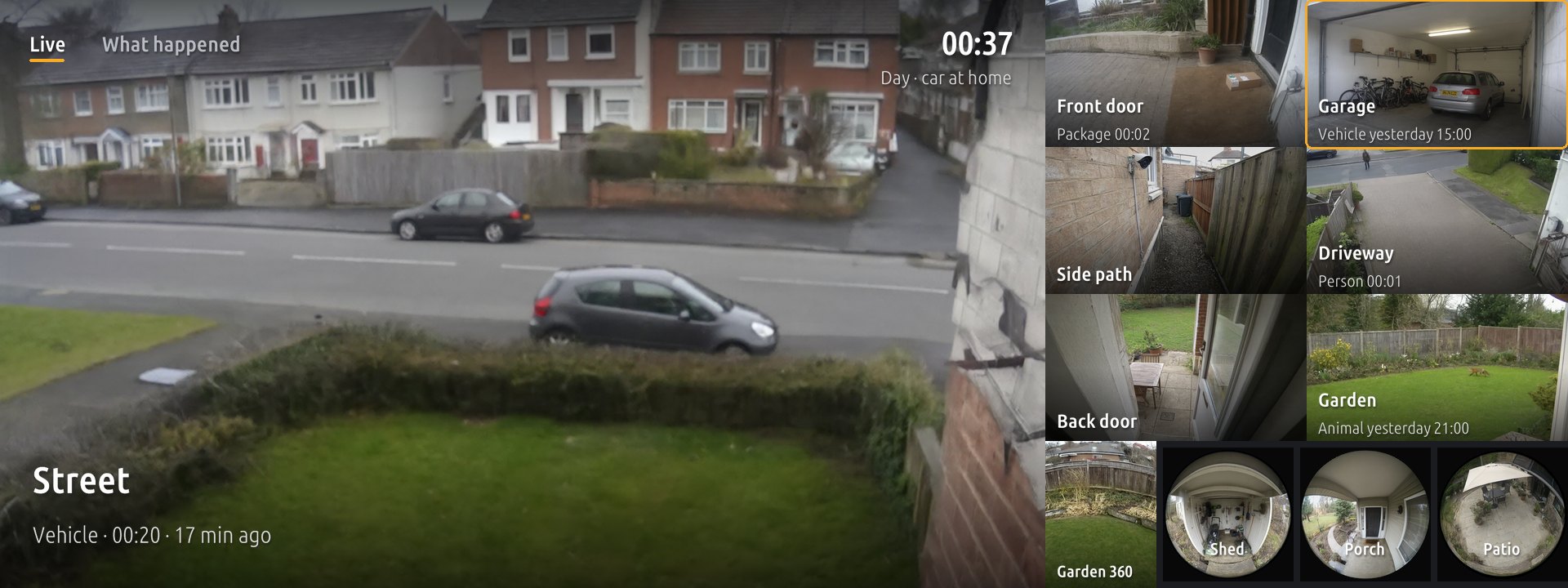
The live view: one camera big on the left, the others in the pane on the right. A mock-up of the app’s screen with AI-generated camera pictures, not my cameras.
How it works
The head unit is an Intel Atom with a small integrated GPU, and it’s busy running the car. So the car never talks to Protect and decodes only one stream. A small server at home does the heavy part:
- It reads the cameras over RTSPS, picking for each one the smallest channel that’s still big enough for its tile, never the 4K main stream unless there’s nothing else.
- It composes them with ffmpeg into one picture at exactly the size of the car’s screen, 1920 × 720, and encodes that as a single H.264 stream.
- It keeps the list of detections and serves their thumbnails and clips.
The encoder suits a decoder that may join late or lose packets on a mobile link: no B-frames, headers before every keyframe, a keyframe every second, at most 8 Mbit/s.
On the car there are three pieces. The app draws the interface and handles touch. A background service, running on Node.js 22, holds the connection to the server and decides which camera gets the big picture. A small C++ decoder hands the H.264 to the head unit’s own hardware decoder (Intel Media SDK) and writes the frames into the video layer of mgu-render, the renderer that apps from the MGU Store use. Its core comes from robertnisipeanu’s waze-on-cluster in idrive-apps, by way of my RideTube app.
Which camera gets the big picture
When something happens, that camera takes over. The server keeps rings and smart detections (person, vehicle, animal, parcel) and leaves plain motion out.
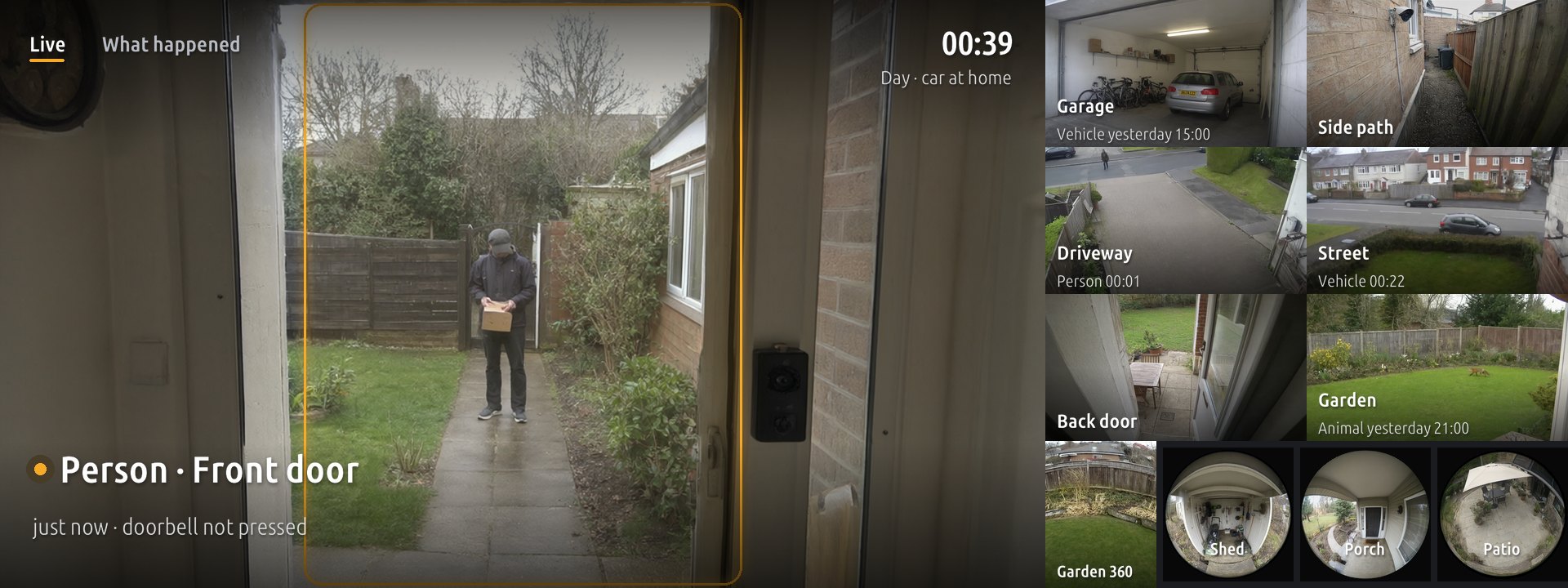
A person seen at the door camera takes the big picture, with a gold ring around it. Same mock-up, AI-generated pictures.
On the server, each camera can get a role:
- door: a ring, or a person seen there, takes the big picture with the gold ring.
- garage: left out of the automatic choice while the car is at home, where it would only show my own car. The car knows it’s at home when it’s on the home Wi-Fi, if you give it the network’s name.
- day and night: what to show when nothing is going on. The car switches at sunset and sunrise, from a location rounded to the nearest 5 degrees, which is plenty for the sun.
With no roles at all, the big picture goes to the camera with the latest detection. Tapping a camera in the pane makes it the big one until you leave the app.
The second tab lists what happened over the last days, newest first, with a thumbnail per detection.
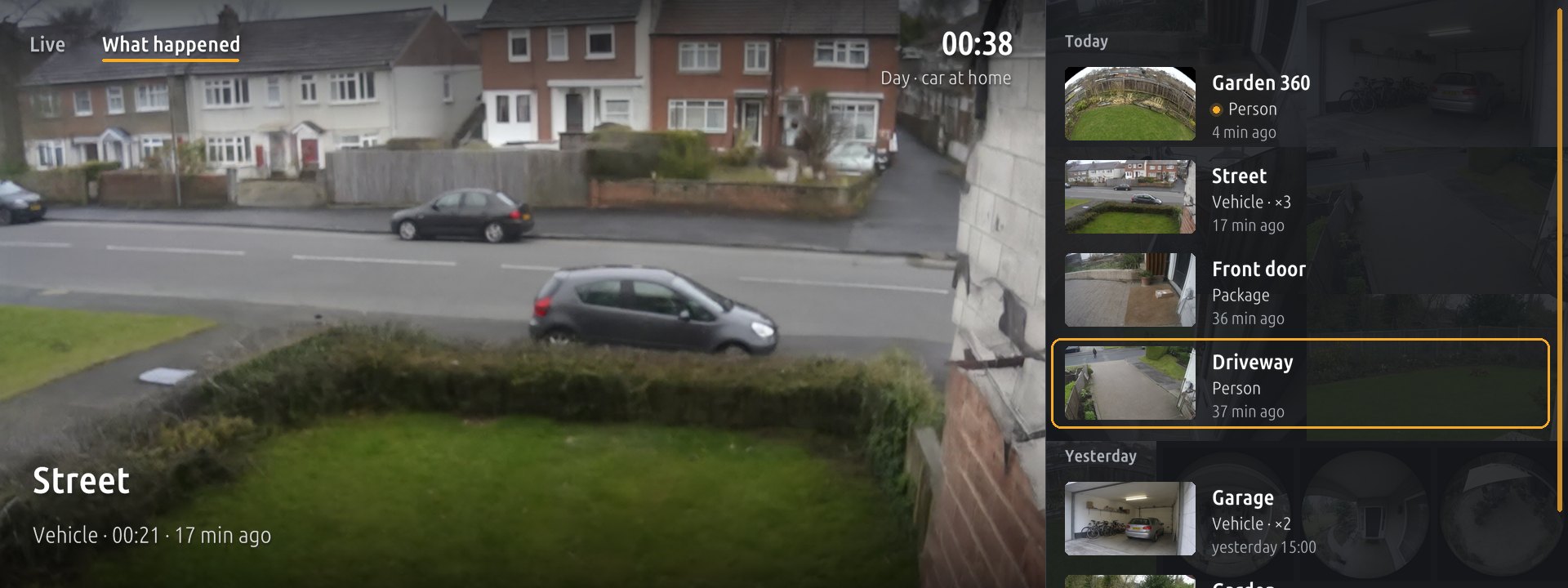
The “What happened” tab. Tapping a row plays its clip from Protect.
The clips come from Protect’s recordings. Protect exports them in HEVC, and the server re-encodes them to H.264, the format RideWatch’s decoder takes. A clip takes a few seconds to start.
The detections are read from Protect’s event list every 3 seconds. When Protect refuses the login, the server waits longer between tries, up to 5 minutes, so a wrong password doesn’t lock the account. Home Assistant can send the detections instead.
Protect cameras need no configuration: the installer finds them and their RTSPS channels. Any other RTSP camera works for the live view if you add its address by hand, but has no clips, and its detections can only come through Home Assistant.
When someone rings
Captured on the car with a demo server: the pop-up over the car’s menu, a tap on a reply, then the microphone button held down. The camera pictures are AI-generated, and Talk hasn’t played a sound in a car yet.
When the doorbell rings and the car is parked, RideWatch puts up a pop-up over whatever app is on the screen, “Doorbell · Front door” with a View button, for 30 seconds. View opens RideWatch on the door camera. The screen doesn’t change by itself, and no pop-up shows while the car moves or when its speed can’t be read. There are pop-ups for a person, a vehicle, a parcel or an animal too, each off by default and with a cooldown.
On the door camera, a row of buttons answers for you: I’m coming, Leave the parcel, Not available, One moment, and Open, which takes two taps. Each one calls the same Home Assistant script with the button’s name, and the script decides what happens. Mine says the reply through the doorbell’s speaker. The replies sent from the car use a voice made with Kyutai’s text-to-speech model, which runs on a machine at home, and the same replies sent from my iPhone still use Piper. You write your own script: it can speak, send a message, or unlock the door on Open. If it unlocks, anyone sitting in the parked car can open the door with two taps.
For this the car needs a Home Assistant token, kept in a small file (ha.json) that only RideWatch can read. Give it a separate Home Assistant user, not an administrator.
Two-way audio is the next step: Listen and Talk buttons on the door camera, to hear the person at the door through the car’s speakers and answer through the car’s microphone. The code is written and passes its tests against fake versions of the car’s audio services, but it hasn’t played a sound in a car yet. It ships switched off, and the server offers it only once you turn it on in its configuration, and only for door cameras.
All of this is in the source on GitHub, at version 0.5.5. The Store still installs 0.3.2, which has no doorbell features, until 0.5.5 has run on my car.
Getting from the car to home
The car gets its internet through mgu-uplink, from the MGU Store: the home Wi-Fi at home, a phone’s 5G elsewhere. To reach the home network it needs a tunnel, which the RideWatch service reaches through a local SOCKS5 proxy on the head unit.
That tunnel is wireproxy, a userspace client for the WireGuard protocol, which I packaged for the car in mgu-apps. It connects to a WireGuard server you run yourself, so the car talks to your server and nothing else. Measured on the car, it did 140 Mbit/s down on the home Wi-Fi and 47 to 50 Mbit/s on 5G. In the last 5G session, a 60-second camera stream froze once per run. It needs a WireGuard server reachable from the internet. The full bench is in the tool’s README.
Without a cap on the TCP send buffer of wireproxy’s userspace network stack, an upload on a slow 5G uplink froze video streams for 10 to 11 seconds. With the cap, the longest gap measured was 0.44 seconds. wireproxy also picks its endpoint and MTU from the uplink: a LAN address on the home Wi-Fi, the public one elsewhere.
mgu-apps also carries the Node.js 22 runtime that the RideWatch service runs on (the head unit only has Node 8 for its own apps), and iDrive Monitor, a small app that shows the head unit’s CPU and memory and raises a pop-up when it runs short.
Pairing and security
At its first start the car makes its own code, something like ABCD-EFGH-JKLM-NPQR, and shows it while the server refuses it. You add that code on the server with one command, and the app retries by itself until the cameras appear.
The server reads Protect with a local user that has the View Only role, so it can’t change anything there. Its configuration file holds that user’s password and is readable only by the service.
The README is plain about the rest. The video and the car’s code travel unencrypted over TCP, so they rely on the tunnel’s encryption, and the server port must never be opened to the internet. The server doesn’t check the Protect console’s certificate, which is self-signed, so it belongs on the same LAN as the console.
Driving
By default the cameras are shown only while the car is parked. Above 3 km/h the picture stops, and if the speed can’t be read the car counts as moving. With the setting off, the cameras keep playing while the car moves. That is for passengers only. The driver must never watch the screen, and it’s worth checking that it’s legal where you drive.
Installing
Apps get onto the car through the MGU Store by robertnisipeanu. It’s his project, it does the hard part of putting third-party apps on iDrive 7, and all my car apps depend on it. I’ve sent it a few pull requests along the way, mostly for the renderer, the uplink and the updater.
In the Store you add JustAnotherPU/ridewatch and JustAnotherPU/mgu-apps as sources, install RideWatch, and the Store pulls in the rest. The server is one install script on a Debian or Ubuntu machine with ffmpeg and a few CPU cores. A small x86 box or a VM is fine.
What broke along the way
- A black screen in the first public release. The renderer only reads video files with a particular name prefix, and 0.3.0 wrote to another name. Fixed in 0.3.1, the same release that renamed the project from its working title to RideWatch.
What still needs looking after
- Protect’s API is private. It changes between versions. The login, the streams and the clip export were tested with one console, the camera list and the event list only against a fake Protect so far.
- Not measured on the head unit yet. The server and the tunnel were measured from the car. The app, the service and the decoder pass offline tests, but their CPU use and decode times on the head unit aren’t measured.
- One car. iDrive 7 only, checked on one car. Reports from other cars are welcome.
- One encoder per car. Each car watching costs one encoder on the server.
- The car’s own screens win. Pop-ups and the reversing camera cover the picture.
What’s public and what’s mine
Public: RideWatch, under GPL-3.0, with the app, the service, the decoder and the server in ridewatch, and wireproxy, Node.js 22 and iDrive Monitor in mgu-apps, mostly MIT. BMW’s SDK is never in either repository or in a release. To build the apps yourself you extract it from your own head unit. Mine: my server’s configuration, my cameras and their roles, my Home Assistant script with its voices, and the server end of my tunnel.
RideWatch is not affiliated with BMW or Ubiquiti. If you try it on another car or another Protect console, the issue tracker is the place to tell me how it went.
Comments
Loading comments…